|
For details on creating a device file or adding devices to a device file, see Creating or adding a Bravo device.
1
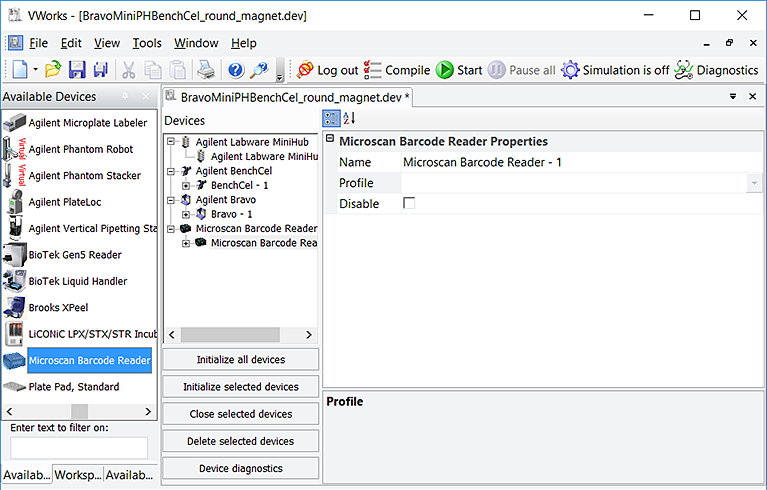
2 In the Available Devices area, double-click the Microscan Barcode Reader. The Microscan Barcode Reader icon appears in the Devices area.
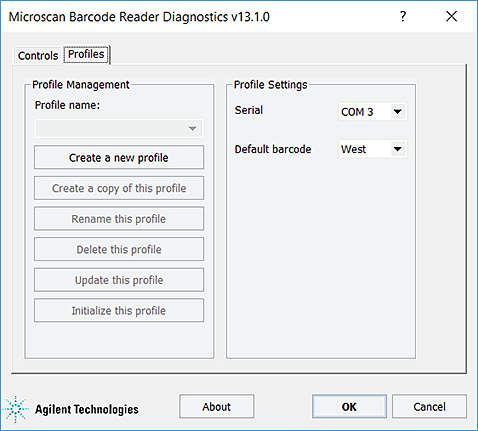
3 In the Devices area, select the Microscan Barcode Reader icon, and click Device diagnostics. The Barcode Reader Diagnostics dialog box opens.
4 In the Profiles tab under Profile Management, click Create a new profile. The Create Profile dialog box opens.
5 Type a name for the new profile and click OK. The new profile name appears in the Profile name list.
6 In the Profile Settings area, select the Accessories Hub Serial port that is connected to the Barcode Reader.
7 Microscan only. In the Default barcode side list, select East or West to indicate the side of the labware that has the barcode label.
8 Click Update this profile to save the newly created profile.
9 Click Initialize this profile to establish communication with the Barcode Reader.
10
Specifying the Barcode Reader location on the Bravo Platform