Bravo Platform User Guide : Setting up the Barcode Reader : Testing and optimizing barcode scanning

Testing and optimizing barcode scanning
About this topic
This topics describes:
Before you start
Make sure you have the following:
Using diagnostics to test the barcode scanning (Microscan sensor)
Use the following procedure to test the barcode scanning.
 
*Class II laser hazard. Looking directly at the laser beam can result in serious eye injury. Do not look directly at the laser beam.
 
 
*Laser emission from the reader does not automatically turn off if the sensor head is disassembled. Do not disassemble the barcode reader sensor head.
 
To test the barcode scanning:
1
2
Open Barcode Reader Diagnostics.
3
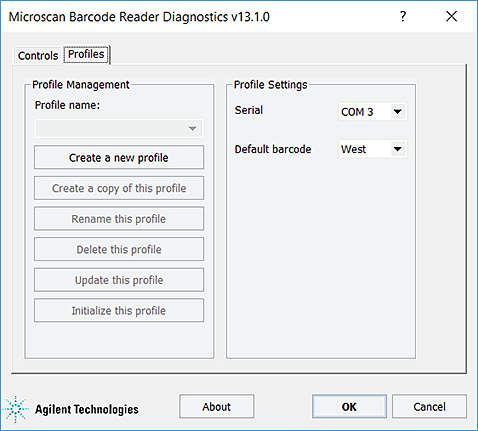
In the Profiles tab, select the Barcode Reader profile from the Profile list, and click Initialize this profile.
Figure. Microscan Barcode Reader Diagnostics Profiles tab
 
4
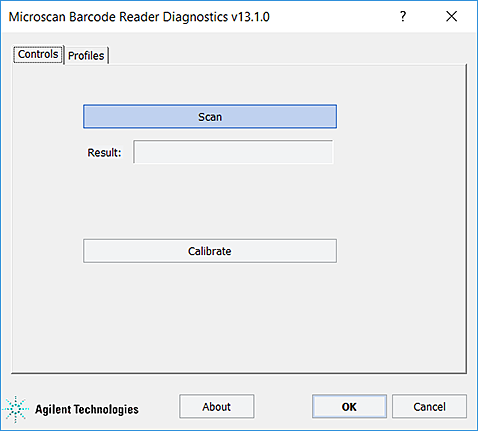
Click the Controls tab.
Figure. Microscan Barcode Reader Diagnostics Controls tab
 
5
Click Scan. The barcode reader laser turns on briefly to scan the barcode label. One of the following messages appears next to Result:
 
<barcode text>
6
If the No barcode found message appears, click Scan again, and check that the barcode reader laser beam is projected onto the vertical center of the barcode label.
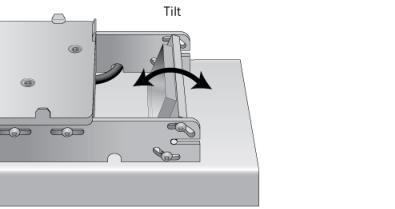
If the laser beam is not at the vertical center of the label, adjust the scan angle of the Barcode Reader mirror.
7
Note: During the calibration process, the scanner attempts various settings to determine the optimum decode rate for the given conditions.
Adjusting the scan angle
To adjust the scan angle of the Barcode Reader:
1
 
2
 
3
4
Troubleshooting
If the reader is unable to scan the barcode after many adjustments, try one or more of the following:
Related information