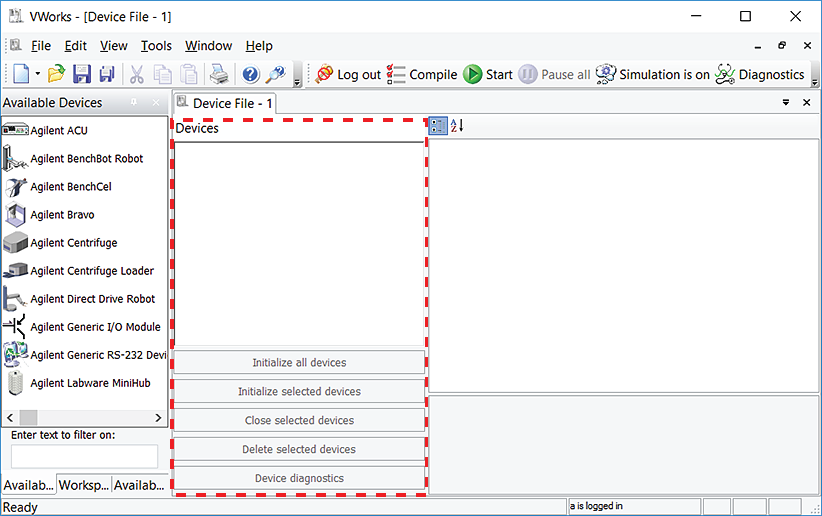
This topic explains how to create a device file in the VWorks software. If you already have a
VWorks device file you want to use, skip this step and proceed to
Adding and deleting a Labware MiniHub in the device file.
A device is an item in your lab automation system that has an entry in the VWorks device file. A device can be a robot, an instrument, or a location in the system that can hold a piece of labware. The following are some examples of devices:
To communicate with and to control the robot and integrated devices, the VWorks software uses a device file that contains the following information:
You provide the device information in the VWorks software. The device information is stored in a device (.dev) file that is located in a folder you specify when saving the file, for example, C:\VWorks Workspace\Device Files.
If you are setting up a lab automation system, such as a BenchCel Workstation, for the first time, you need to create a new device file, and then add the system or workstation robot, the
Labware MiniHub, and other integrated devices to this file.