|
Adding and deleting a Labware MiniHub in the device fileAdding a Labware MiniHub in the device fileTo add a Labware MiniHub in the device file:
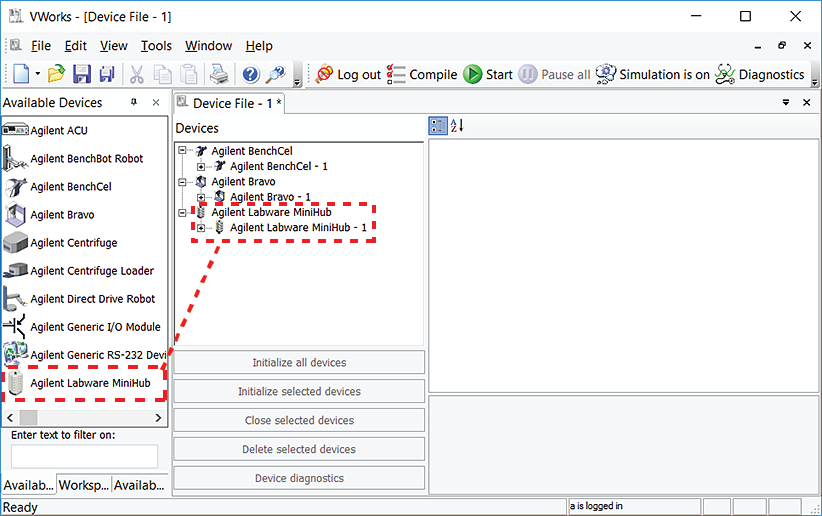
1 In the Available Devices area, double-click the Labware MiniHub device icon. Alternatively, you can drag the icon from the Available Devices area into the Device File area.
Notice that in the Devices area, the first Labware MiniHub device is labeled Labware MiniHub-1. If you add another Labware MiniHub device, it will appear as Labware MiniHub-2.If you do not see the Labware MiniHub in the Available Devices list, check that the MiniHub plugin file (AgilentLabwareMiniHub.dll) is stored in the following folder: ...\Agilent Technologies\VWorks\Plugins.If you added the Labware MiniHub plugin file in the Plugins folder and you have already started the VWorks software, be sure to reload the plugin. To do this, close any open device files and protocol files, and then select Tools > Reload Plugins.
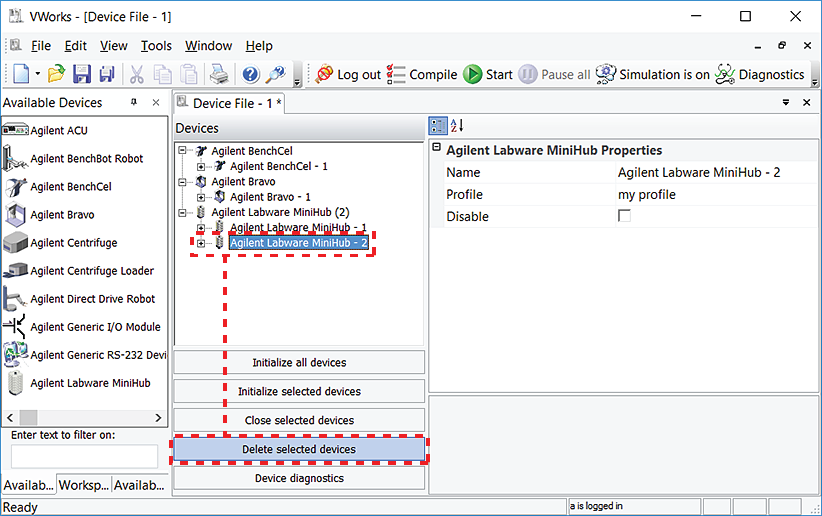
2 If you have multiple Labware MiniHub devices in the system, repeat step 1 to add the other Labware MiniHub devices.Deleting a Labware MiniHub from the device fileTo delete a Labware MiniHub from the device file:
1
2 Click Delete selected devices.
Creating profiles for the Labware MiniHub Setting up Labware MiniHub properties in the device file